Showing posts with label device. Show all posts

Wednesday, 17 July 2013

How to transfer your BlackBerry 7 data to a BlackBerry 10 device using BlackBerry Link

How to transfer your BlackBerry 7 data to a BlackBerry 10 device using BlackBerry Link


If you're upgrading from a BlackBerry 7 device to a new BlackBerry 10 device, there is a very easy way to transfer over all of your data including calendar, contacts and other various items so you don't have to do any of the hard work. Using BlackBerry Link, you can easily transfer over your old data to a new BlackBerry 10 device in a matter of minutes with a few easy steps. Keep reading to see how it's done.

How to transfer your BlackBerry 7 data to a BlackBerry 10 device

Method 1
First off you'll need to install the latest version of BlackBerry Link on your Windows PC or Mac
After it's installed, open BlackBerry Link and plug in your BlackBerry 7 device with a microUSB cable
BlackBerry Link will tell you that your device is not supported but that's ok. Click the Transfer Device Data button to continue.

You'll see a few notes on the next screen, so once your squared away there, click Next.
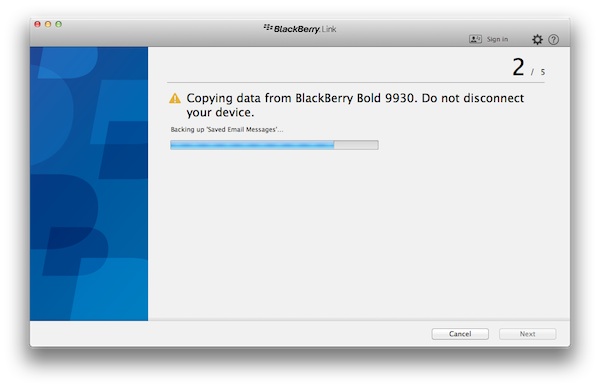
Your transfer will begin (it won't take long). When it's done you'll be asked to disconnect the current device and connect the new BlackBerry 10 device.
Disconnect your BlackBerry 7 device and then connect the BlackBerry 10 device using a microUSB cable.
Once the BlackBerry 10 device is recognized by BlackBerry Link, click on the device in the window and then click Next.

You'll see a quick message with some things to note. Once you're squared away, click Next

The transfer will begin and you data will be moved to the new BlackBerry 10 device. 

When complete, you'll see a confirmation screen as well as a list of any errors or data that may not have been transferred. Click Finish.

Method 2

The method 2 can be done by SD card. It also works optimally. Just follow these instructions via your old Blackberry. On your old BlackBerry Phone, please Tap Search > find for ‘Device Switch’, after that ‘Go to Set Up’ > Device Switch > Using Media Card > Save Data. After that you are allowed to uncheck or check your phonebook data. Remove the SD card and enter to the new BB phone.
From here your new BlackBerry 10 device is ready to go. You'll want to jump in and finish out the setup for any additional settings or accounts. Be sure to check out our BlackBerry 10 Help Series for everything you need to know or hit up the CrackBerry forums for more discussion.

Monday, 8 July 2013

01. How to setup your BlackBerry Z10 for the first time

WHEN TURNING YOUR BLACKBERRY Z10 ON FOR THE FIRST TIME, YOU'LL BE GREETED BY THE FIRST TIME SETUP. LIKE MANY SMARTPHONES, THIS IS BOTH AN INTRODUCTION IN HOW TO NAVIGATE THE HANDSET AND ALSO A CHANCE TO SET UP BASICS LIKE INTERNET, WIFI AND YOUR BLACKBERRY ID.

To begin using your new BlackBerry Z10, Insert the SIM cardSD card and battery. Power up your handset and follow the step-by-step instructions below to navigate successfully through the First Time Setup procedure.
  1. Decide whether to use a 3G connection on your smartphone.
  2. If you are near a wireless network, you can connect to it on the Wi-Fi Setup page. Simply find the Wi-Fi network you wish to join and enter the password to access it.


    1. Read the License Agreement and accept if you agree to its terms.
    2. Choose which country your Z10 will be operating in. 

      AGENT TIP

      At any point, to move through a screen or skip a screen, you may need to swipe a finger from right to left across the display.
    3. Set up a new BlackBerry ID, or sign in with an existing one if you are already a BlackBerry user. If you encounter any difficulties with the sign-in process, you can troubleshoot the problem here or contact the Geek Squad on 0800 049 4335 for some one-on-one support.
    4. Decide whether to turn on the Diagnostics and Locations services by choosing either On or Off. Turning Diagnostics on can help improve the way the device works by sending information to BlackBerry about any problems you come across. Turning on Locations will tailor search results and other information to suit your current whereabouts.
    5.  Check for updates to make sure your Z10 is running at its best. Your smartphone needs at least 20% battery to install any updates!
    6. Complete the Gestures tutorial to learn the best way to navigate your new handset. You must complete the tutorial to finish the setup wizard.

How to reload the BlackBerry Z10 or Q10 operating system

Have you ever been in the position where your BlackBerry Z10 or BlackBerry Q10 simply won’t start up? Are you getting just a red flashing light but nothing else, no matter how many times you remove and reinsert the battery? Have no fear: just follow our handy guide below and you will see how you can reload your BlackBerry using BlackBerry Link, a USB cable and a little time!
When a BlackBerry 10 device is only flashing the red light and refusing to boot up, this indicates that the device’s operating system has become corrupted. The flashing light may follow the pattern of 1, 2 or 3 short blips, with a longer pause between the sets.
In order to fix this, you need to re-install the operating system on the device, which will then set the device back to its original factory state.

Please note: this process will completely wipe your device, so please make sure you have a backup of your personal information available to restore before going through this process. 

  1. Download and install the latest version of BlackBerry Link for your computer.
  2. Open BlackBerry Link software.
  3. Plug in the BlackBerry device using your USB cable.
  4. At the bottom left of the program, find the device you're having issues with and select it by clicking on it.


5.   The BlackBerry Link application will then ask to either reconnect or reload the device software. Choose Reload.

6.  Confirm the reload when prompted to do so, which will wipe clean any data previously on the handset.


7.  Allow the reload to complete, which can take some time. Whilst this is underway, the device will have a solid green light. This process of downloading and reinstalling the device can take an hour or more, depending on the speed of your internet connection, soplease don't disconnect the BlackBerry until the process has finished.

8.  Once the restore is complete, simply set up your device again, or restore it from a previous backup stored on your machine. However, if you want to restore a previous backup, remember to sign in to your BlackBerry ID on the device first! If you're not sure how to do this, we have a full guide available.
The good news is, this process is almost identical on both PC and Apple Mac. Simply follow the same process as above. Finally, if you have any questions, please don't hesitate to get in touch with us.

Twitter Delicious Facebook Digg Stumbleupon Favorites More

 
Design by MUHAMMAD WALI KHAN SEO/SEM | WEB DEVELOPER / DESIGNER Also Online Internet BUSINESS And Marketing Consultant. OR IT HARDWARE AND SOFTWARE ENGINEER